Gawler Libraries, with State Government support, provides free public internet access to the community via Public Access Computers and Wi-Fi.
There are eight public access computers available at the Gawler Civic Centre, and six available at the Evanston Gardens Library. All computers have internet access, word-processing and printing facilities.
Conditions apply to computer and Wi-Fi use, and charges apply for printing. You can view our Internet Access Conditions of Use here.
You must have a current Library Membership card to use the public computers, or provide valid ID for a temporary guest pass.
The public access computers can be booked in advance, however this is not a requirement, simply come in, find one not in use and login with your library barcode number and your PIN.
If you do wish to make a booking, you can do so by calling the Gawler Civic Centre Library on (08) 8522 9213 or the Evanston Gardens Library on (08) 8522 0123.
Gawler Libraries offers Free Wi-Fi with a 5GB daily download limit.
Use of the Library's WiFi is conditional upon your agreement to the Public Libraries' Internet Policy, Terms and Conditions of Use which can be viewed here Internet Acceptable Use Policy For Library Customers
You can print from your own device in the Library by using the Princh app.
Most laptops and mobile devices are set up for wireless access, your device should automatically detect the LibrariesSA-Free network.
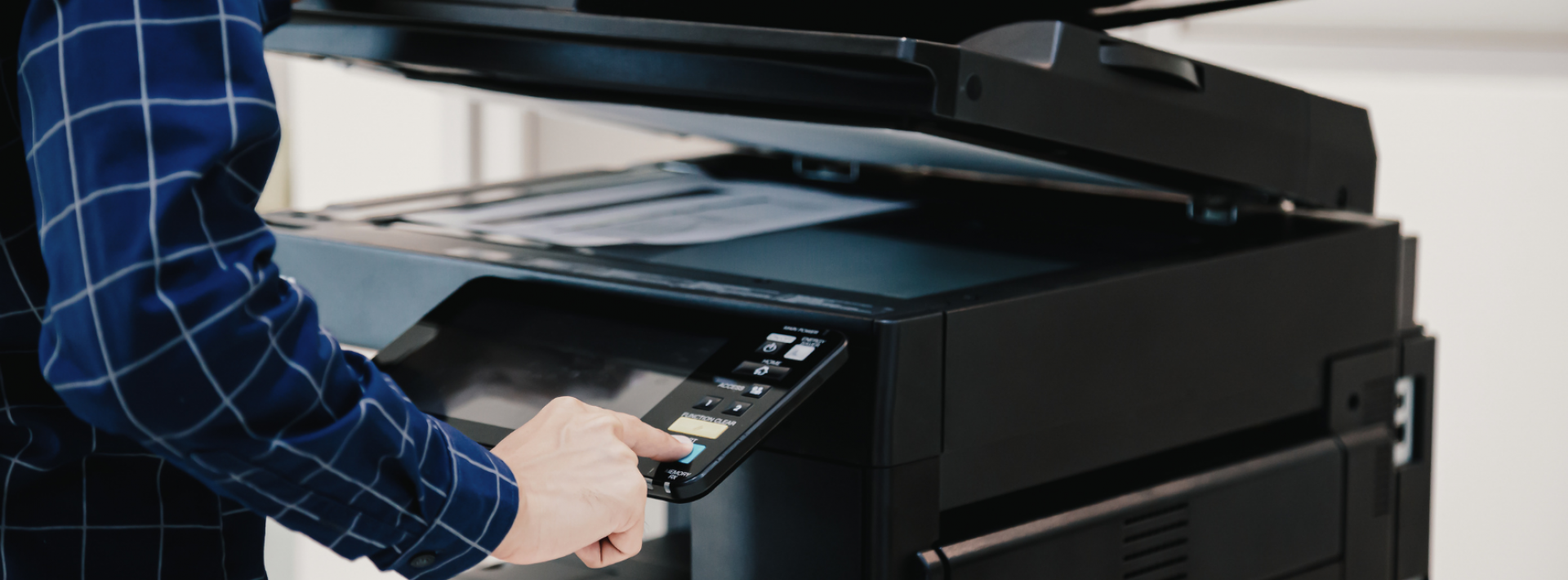
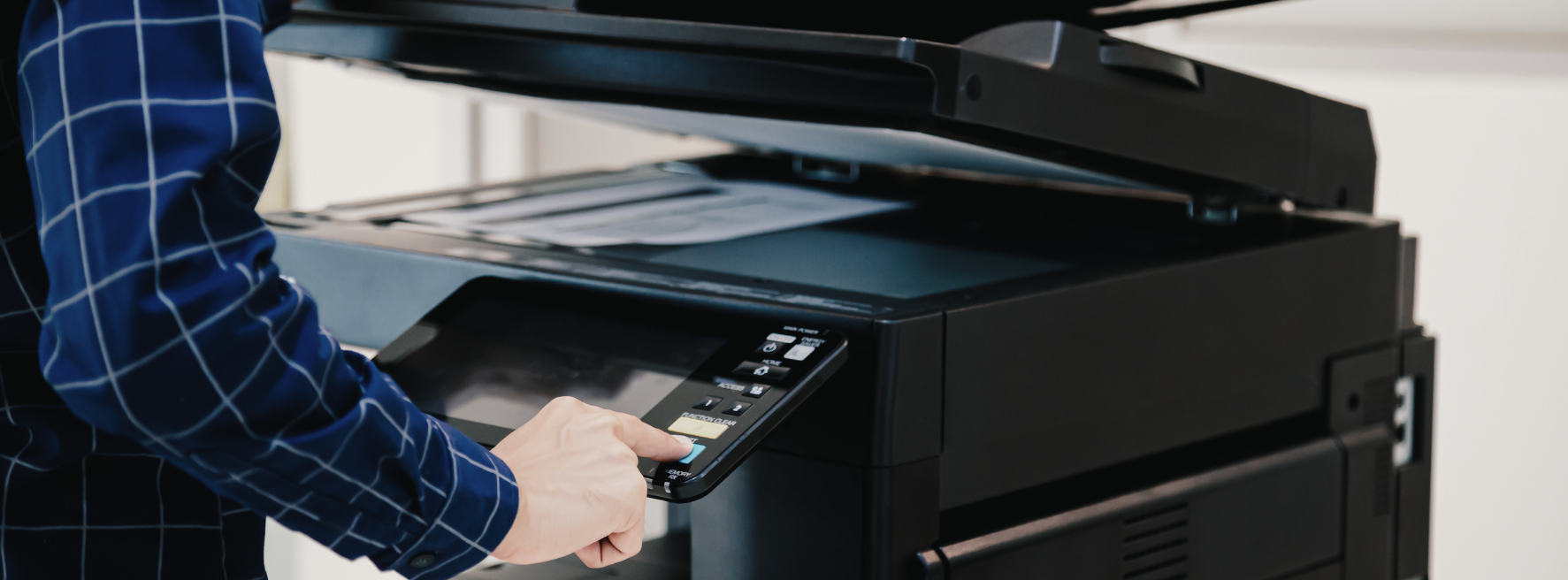
Both Libraries have a colour photocopier, available for printing and photocopying.
Costs (per side of the page):
- 30 cents for a black and white copy (A4 or A3)
- $2 for A4 size colour copy
- $3 for A3 size colour copy
You can pay by cash or credit card (debit-only cards are not accepted by the system).
Free scanning to your USB is available.
Please note you will need a valid email address to print using our wireless printing system.
The Library uses Princh for wireless printing.
When printing at the library:
Locate the print guide poster near the printer and scan the QR code. Follow the prompts to print.
To print from the Princh app:
Download the FREE Princh app from your app store. Follow the directions on the app for print document.
- Open the app that contains your document(s).
- Tap the share icon and select Print with Princh.
- When instructed to do so, switch back to the Princh app, if it doesn’t automatically.
- Select printer using the 6-digit ID (Civic Centre - 111072, Evanston Gardens - 110128), adjust settings and tap Print.
- Proceed to the Print Release Terminal at your chosen library to pay for and collect your print job.
To print from a laptop:
- Open your browser, go to print.princh.com and enter the 6-digit printer ID to select the printer:
- Civic Centre - 111072
- Evanston Gardens - 110128
- Upload your document(s).
- Adjust the settings.
- Enter your email address.
- Proceed to the Print Release Terminal to pay for and collect your print job.
Using the Print Release Terminal
At the library, go to the Print Release Terminal, and select Release a Print Job
Enter the email address you entered when you sent your printing, and select your print job
Pay for your printing using cash or card, and your print job will be printed.